
Asset Workflows
Workflows are guided, step-by-step actions you run on an asset. This guide covers the two that are available today — checking an asset out with the Assign workflow, and checking it back in with the Return workflow.
What workflows are
A workflow walks you through a common asset task one step at a time, makes the right changes to the asset for you, and records what happened in the asset's history. You do not have to remember to update the status or clear the assignee by hand – the workflow takes care of that.
You can start a workflow from three places:
- The Run workflow button on an asset's detail page.
- The right-click menu on any row in the asset list.
- The bulk action bar, when you have selected several assets at once.
Checking an asset out (Assign workflow)
Use the Assign workflow when you hand an asset to a team member – for example, issuing a laptop to a new starter.
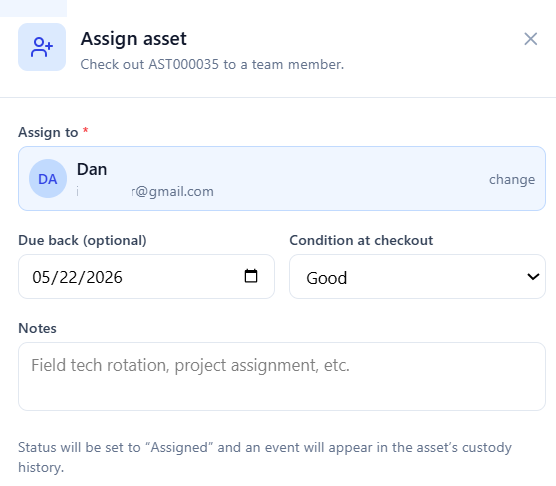
- 1 Open the asset's detail page.
- 2 Click Run workflow, then choose Assign asset.
- 3 Pick the team member you are assigning the asset to.
- 4 Optionally set a due-back date – the date you expect the asset to be returned.
- 5 Optionally record the condition at checkout and add any notes.
- 6 Click Assign.
The asset's status changes to Assigned, it is checked out to that person, and an entry is added to the asset's history so there is a record of who took it and when.
Checking an asset back in (Return workflow)
Use the Return workflow when an assigned asset comes back.
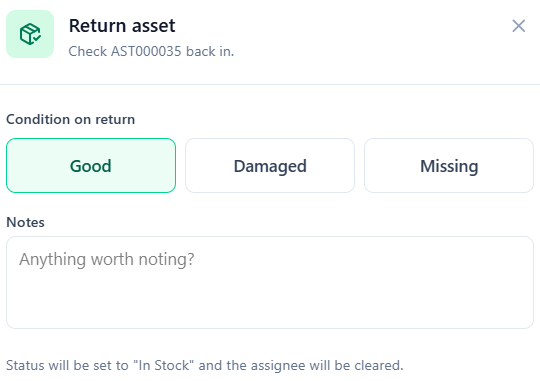
- 1 Open the assigned asset's detail page.
- 2 Click Run workflow, then choose Return asset.
- 3 Choose the condition on return: Good, Damaged, or Missing.
- 4 Add any notes about the return.
- 5 If you chose Damaged or Missing, an "Issue a ticket for this" option appears, switched on by default. Leave it on to create a support ticket for the damage, or switch it off to skip.
- 6 Click Return.
The asset is checked back in, its status returns to In Stock, and the assignee is cleared. As with Assign, the return is recorded in the asset's history.
More workflows (coming soon)
Six more guided workflows are on the way. They will appear in the Run workflow menu as they ship. Until then, they are listed here so you know what is coming:
| Workflow | What it will do |
|---|---|
| Receive Coming soon | Log newly received assets into stock. |
| Transfer Coming soon | Move an asset to a different person or location. |
| Send-to-Repair Coming soon | Send an asset out for repair and track it until it returns. |
| Mark Lost/Stolen Coming soon | Flag an asset that has gone missing. |
| Retire/Dispose Coming soon | Take an asset out of service at the end of its life. |
| Audit Scan Coming soon | Check assets during a physical inventory audit. |
This page will be updated with full step-by-step instructions for each workflow as it becomes available.
Frequently asked questions
Do I need permission to run a workflow?
Each workflow has its own capability on the Asset Permissions screen. If your organization has turned on permission enforcement, you need the matching capability to run that workflow. If enforcement is off, workflows are available as before. See Asset Permissions for details.
Can I return more than one asset at once?
The Return workflow is run from an individual asset's detail page, one asset at a time. The Assign workflow can be run on several assets at once from the bulk action bar.
What does the due-back date do?
The due-back date records when you expect an assigned asset to come back. It is stored with the assignment and shown in the asset's history, so you have a reference point when you are following up on outstanding equipment.
The asset's status did not change — why?
The Assign and Return workflows set the status for you (to Assigned and back to In Stock). If the status looks wrong, check that the workflow finished – reopen the asset and confirm the new entry appears in its history.