Team Management
Create teams to group agents by department, function, or specialty. Use teams to assign tickets to the right group and keep your queue organized at scale.
What are teams?
Teams are groups of agents within your organization. A team might represent a department (e.g. "Billing", "Technical Support", "Onboarding") or a shift (e.g. "Morning Team", "After Hours"). Teams are optional — they become useful once you have multiple agents handling different types of work.
Teams are used in two ways:
- Ticket assignment — You can assign a ticket to a team instead of (or in addition to) a specific agent. This makes it visible to all members of that team.
- Filtering and organization — You can filter the ticket queue by team to see only tickets belonging to a particular group.
Viewing your teams
Go to Settings → Teams in your FyneDesk app. This page lists all teams in your organization, the number of members in each, and a description if one was added.
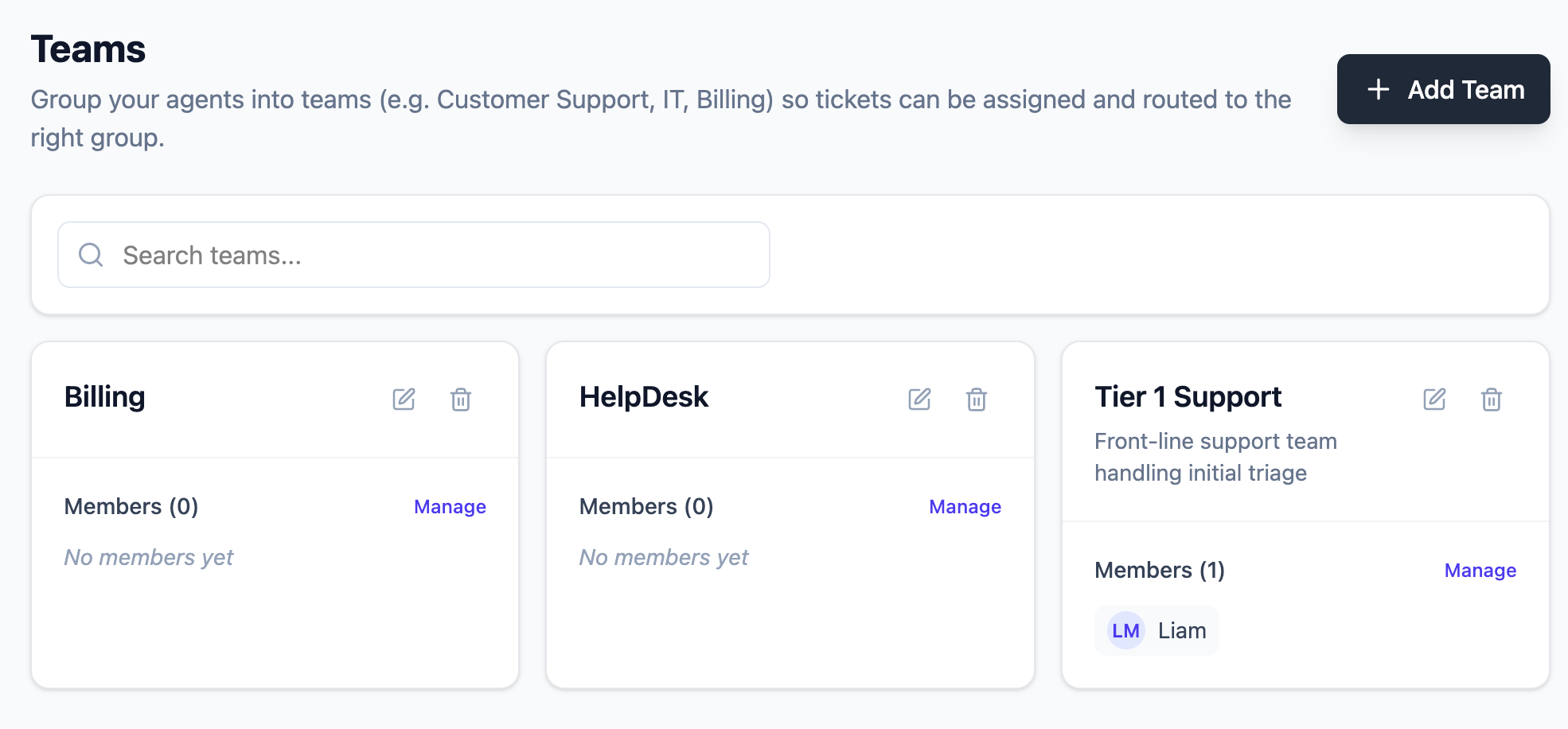
Creating a team
You need to be an Admin to create and manage teams.
- 1 Click New Team in the top-right corner of the Teams page.
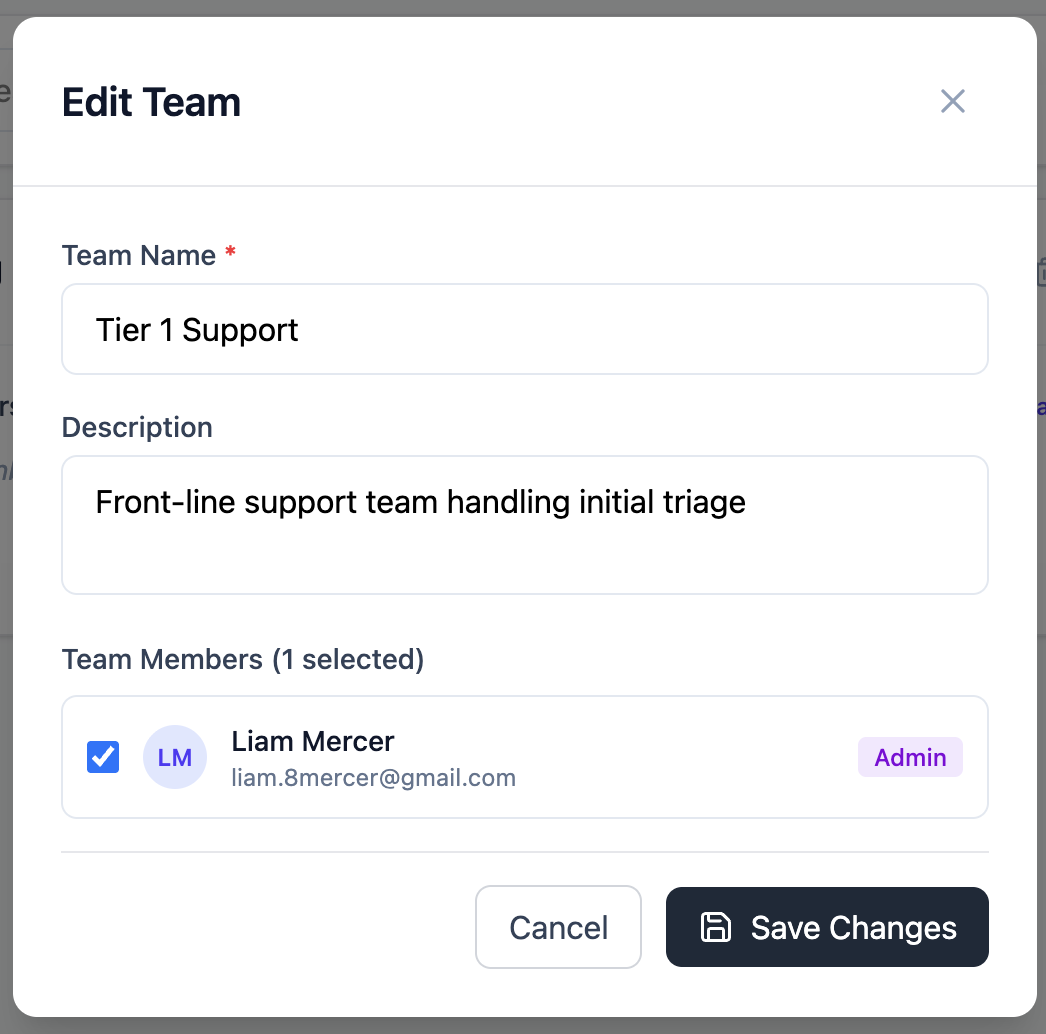
- 2 Enter a name for the team. This is what appears throughout FyneDesk — in ticket assignment dropdowns, filters, and reports.
- 3 Optionally add a description to clarify what this team handles (e.g. "Handles all billing and payment-related tickets").
- 4 Select the agents and admins you want to add as members by checking their names in the member list.
- 5 Click Save to create the team.
Adding and removing members
To update a team's membership, click the team name or the edit icon on the Teams page. The edit modal lets you add or remove members by checking and unchecking their names. Click Save when done.
Assigning tickets to a team
When creating or editing a ticket, you can assign it to a team using the Team field in the ticket form or the ticket detail sidebar. All members of the assigned team can see and work on that ticket.
You can assign a ticket to a team, to a specific agent, or to both. If assigned to a team only, any member of the team can pick it up.
Editing a team
Click the edit icon next to any team on the Teams page to update its name, description, or membership. Changes take effect immediately.
Deleting a team
Click the delete icon next to a team and confirm. Deleting a team removes the team and its membership records, but does not delete any tickets that were assigned to it. Those tickets will simply no longer have a team assigned.
Frequently asked questions
Can End Users be added to teams?
No. Teams consist of Agents and Admins only. End Users cannot be team members.
Do team members get notified when a ticket is assigned to their team?
Notification behavior for team assignments is linked to individual notification preferences. Each team member's personal notification settings control what emails they receive.
Is there a limit on how many teams I can create?
There is no hard limit on the number of teams. Create as many as your organizational structure requires.
Can I see a list of tickets assigned to a specific team?
Yes. On the Tickets page, use the team filter to show only tickets assigned to a specific team.