
Send FyneDesk notifications to Microsoft Teams
Get a message in your Teams channel every time a ticket is created, commented on, or changes status. FyneDesk sends the event to a webhook, and a short Power Automate flow turns it into a Teams message. Follow the steps below in order — it takes about ten minutes.
How it works
FyneDesk sends each event (new ticket, new comment, and so on) as a small JSON data packet to the URL you provide. Microsoft Teams doesn't display that packet on its own — your Power Automate flow has to take the data and post it as a message.
This is why a test can say "sent successfully" while nothing shows up in Teams: Power Automate replies 202 Accepted the instant it receives a request, so "success" only means Microsoft received the data. It says nothing about whether a message was posted. Once you add the posting step in Part 3, messages will appear.
Before you start
- A Microsoft Teams team and channel where you want the notifications, and a Power Automate account with a licence that can post to Teams.
- Admin access to FyneDesk webhooks. In the left sidebar, open Admin → Settings, then choose Developer & Data → Webhooks.
- About ten minutes. You'll build a flow from a ready-made template, paste its URL into FyneDesk, then add one step that posts the message.
Set it up
This is the exact path our team uses, end to end. It produces a simple, readable text message. (Want the message to name each event type, or prefer a formatted card? See the advanced options below.)
Part 1 — Create the flow from a template
Go to make.powerautomate.com and sign in. In the left menu choose Templates, type webhook in the search box, and open Send webhook alerts to a channel — the plain one, not the "(TEST)" versions. Click Continue (sign in again if asked).
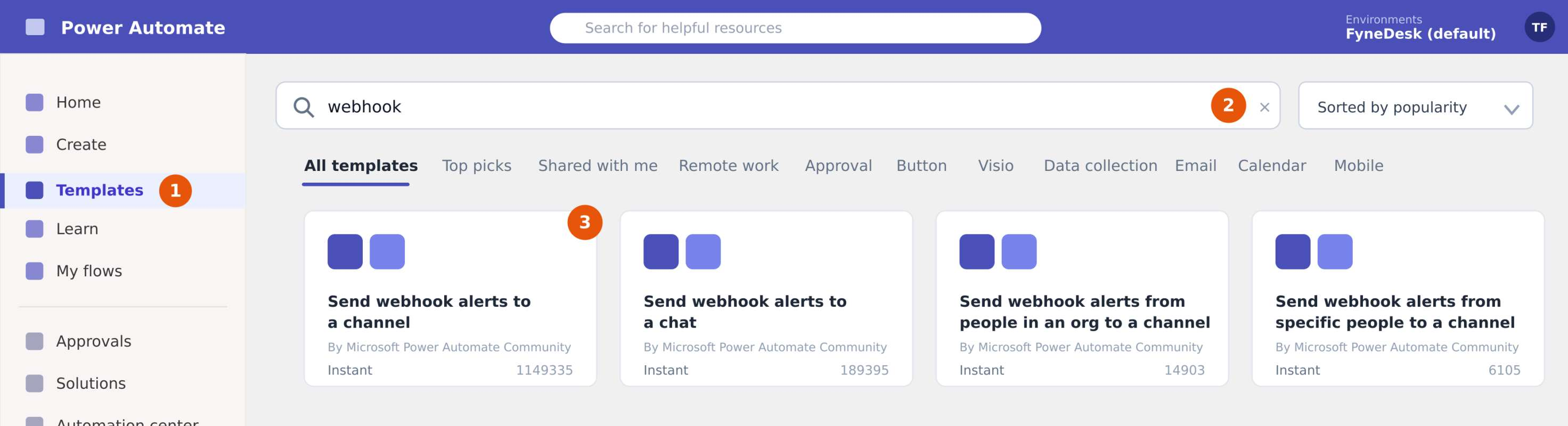
The template shows it will connect Teams → Microsoft Teams and generate a webhook URL. Before you click Create, set the Team and Channel you want the notifications posted to — this is easy to miss, and it matters.
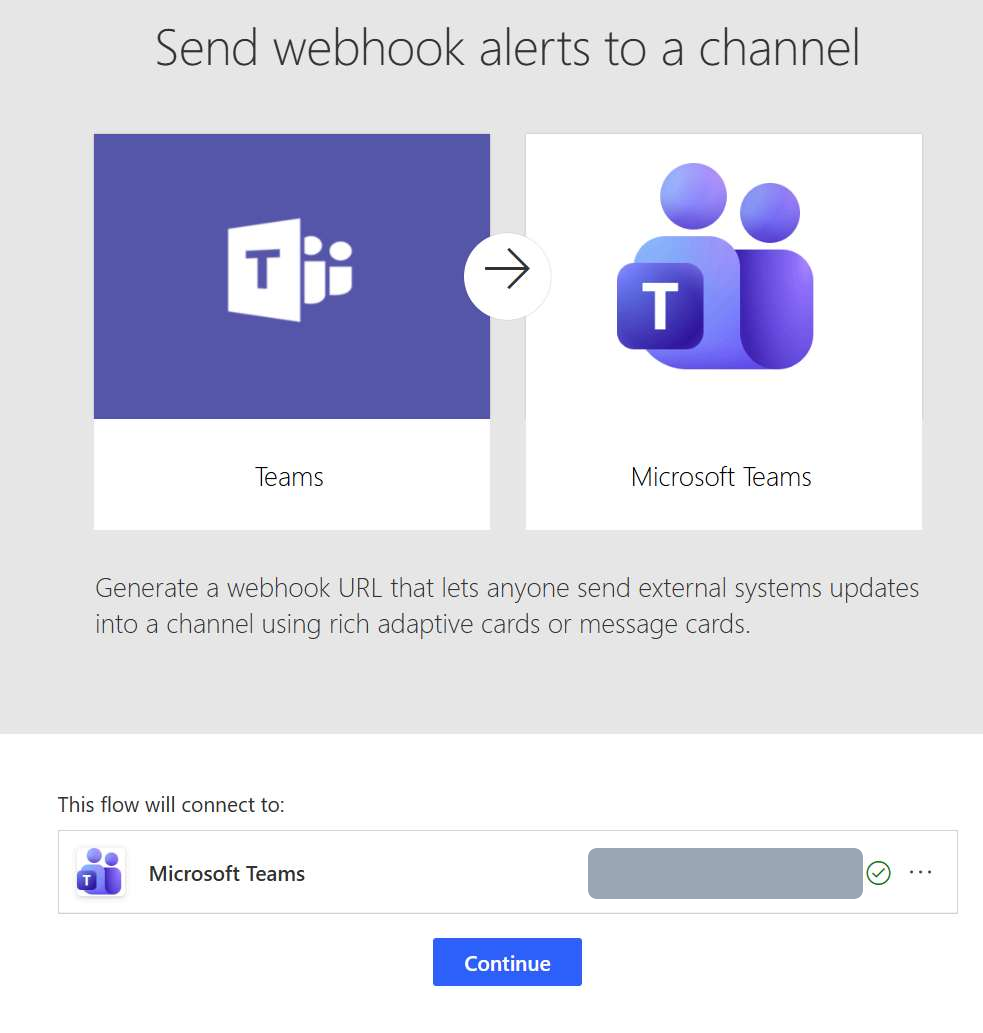
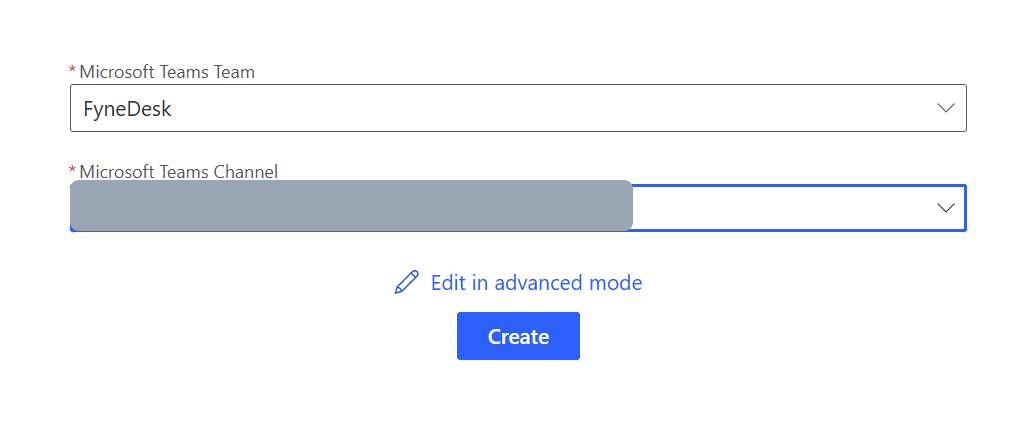
Choose your Team and channel, then click Create. When the flow opens, click Edit to start editing it.
Part 2 — Give the URL to FyneDesk
In the flow, click the first box, "When a Teams webhook request is received," and copy the HTTP URL it shows.
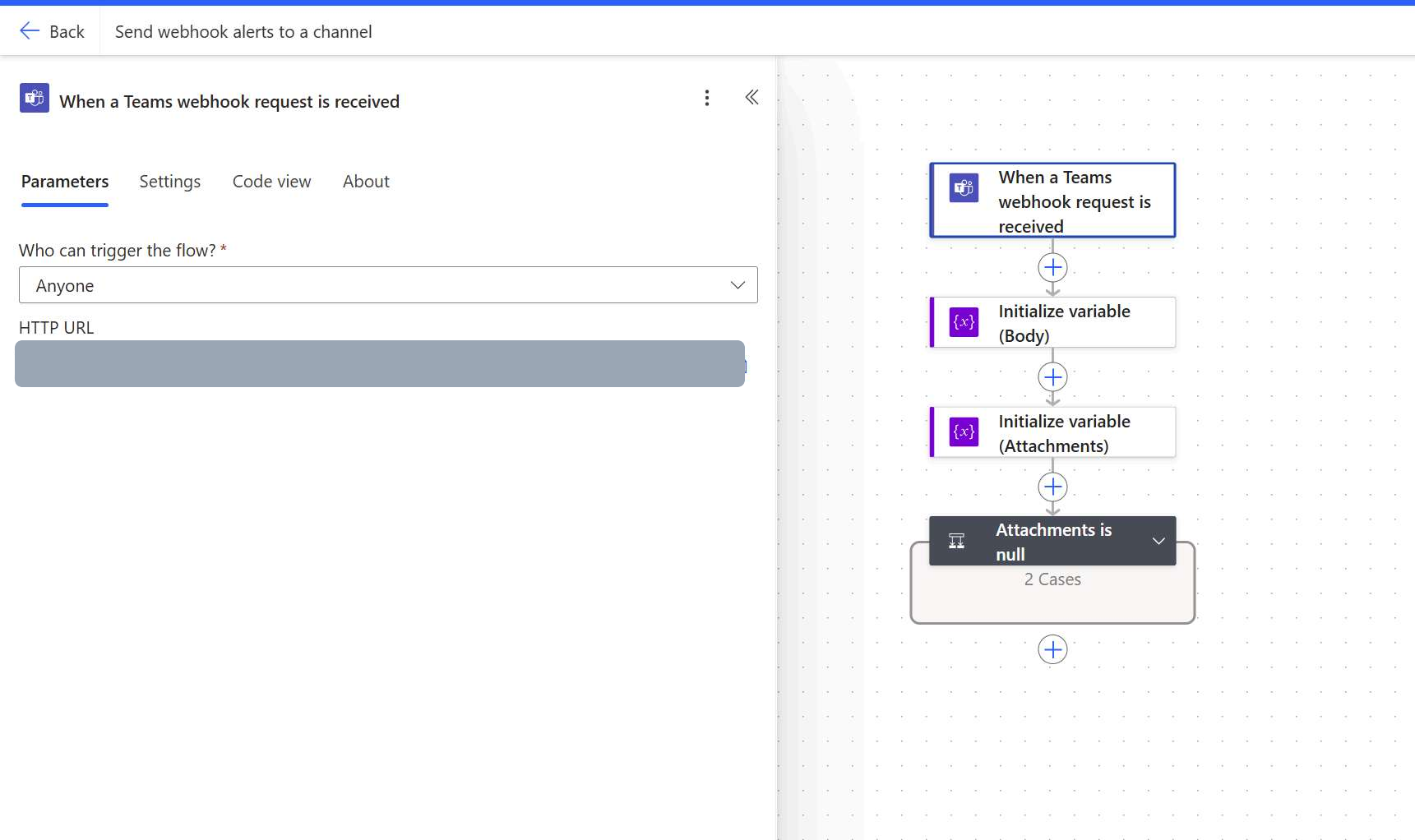
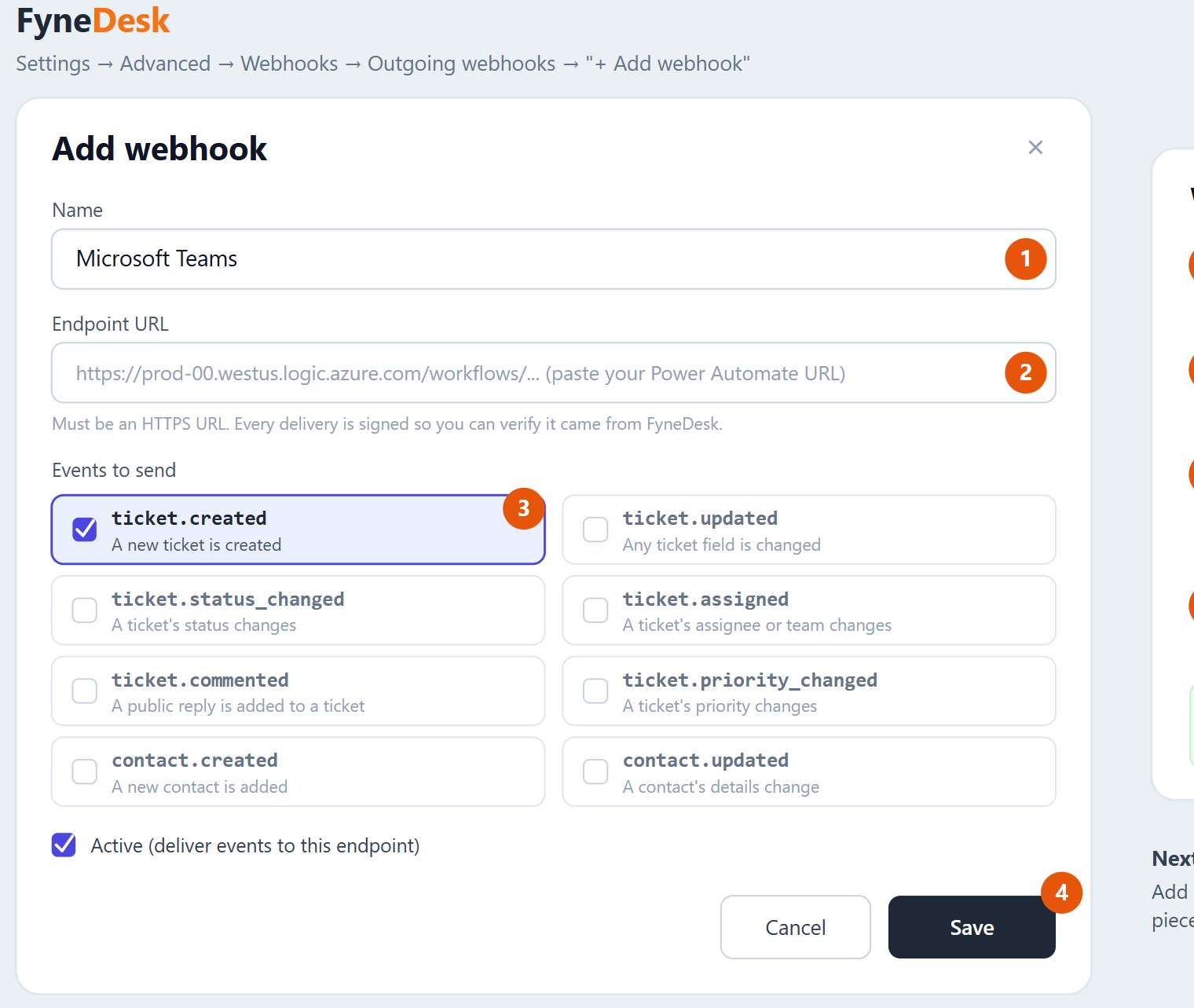
Then in FyneDesk, go to Admin → Settings → Developer & Data → Webhooks and click Add webhook:
- Name it something you'll recognise later, e.g. Microsoft Teams.
- Paste the Power Automate URL into Endpoint URL (it must be an HTTPS link).
- Leave
ticket.createdticked — that's all you need to start. (You can add more events later.) - Click Save.
Part 3 — Tell the flow what to post
This is the step that's easy to miss — and it's exactly why a test can say "sent" while nothing appears in Teams.
1. Delete the two prebuilt steps. The template adds an Initialize variable action (sometimes two) and an Attachments is null condition. Delete both — click the … on each step, then Delete. Leaving them in is what triggers the "AdaptiveCard" error.
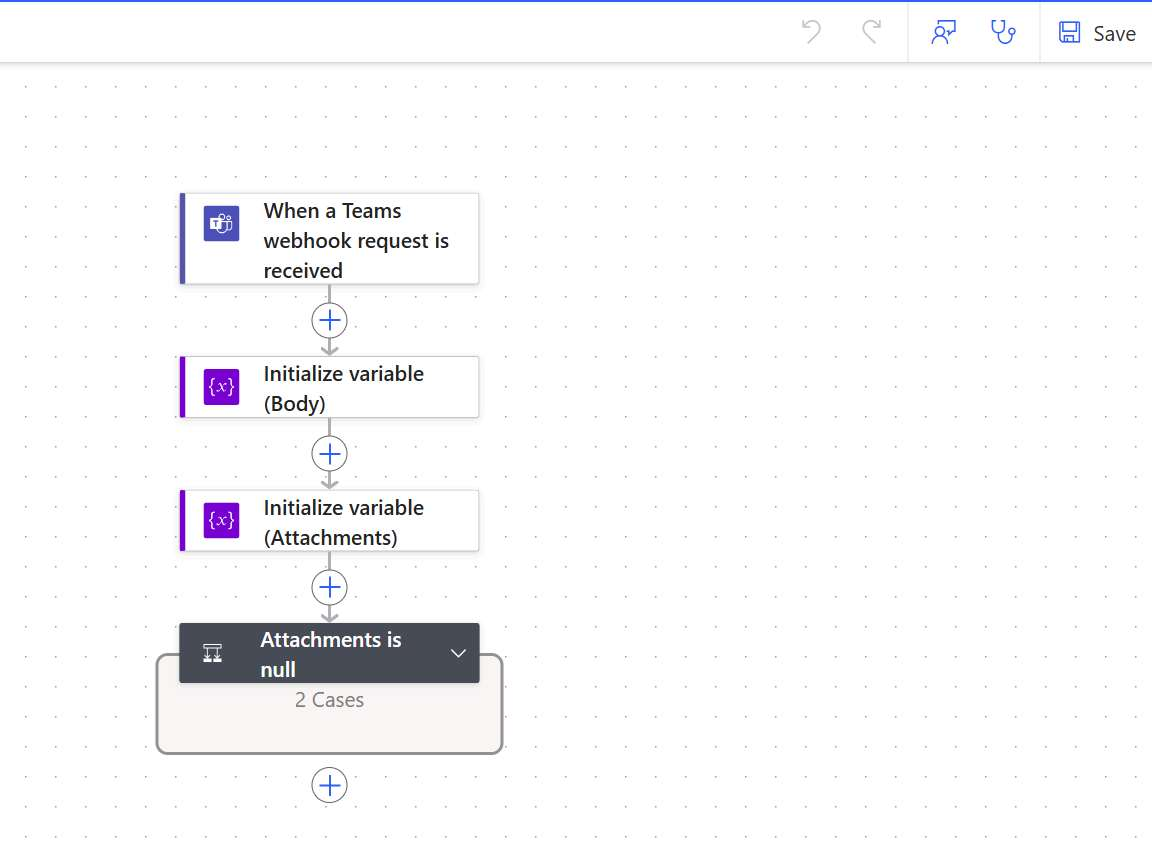
2. Add the posting action. Click the + under the trigger and choose Post message in a chat or channel (the Microsoft Teams connector). Set the dropdowns:
| Field | Set to |
|---|---|
| Post as | Flow bot |
| Post in | Channel |
| Team | Your team |
| Channel | The channel you want notifications in |
3. Build the message. Click inside the Message box, click the blue fx (Insert expression) button, paste the expression below exactly, then click Add.
concat('New ticket ', triggerBody()?['data']?['ticket_number'], ' - ', triggerBody()?['data']?['title'], ' | Status: ', triggerBody()?['data']?['status'], ' | Priority: ', triggerBody()?['data']?['priority'], ' | https://fynedesk.ai/tickets/', string(triggerBody()?['data']?['id']))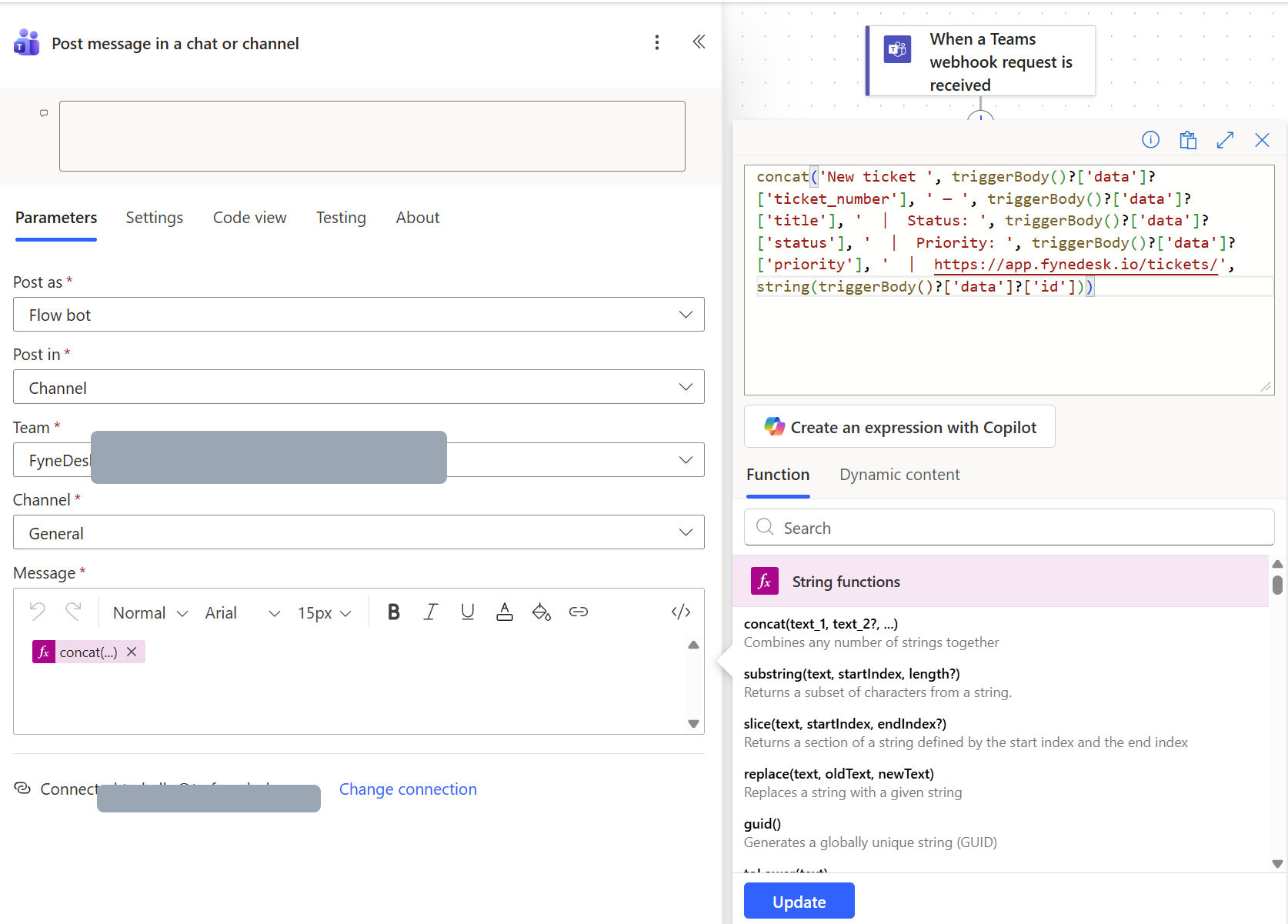
4. Save. Click Save (top right). You should see "Your flow is ready to go."
- Always insert the expression with the fx button — never type it as plain text, and never wrap it in
@{ }. - If you used a Copilot box at any point, clear that step's Comment field before saving. A long note there (over 256 characters) silently blocks the save.
Part 4 — Test
Create or update a real ticket in FyneDesk. A message appears in your Teams channel within a few seconds.
ping packet with no ticket number or title, so the test message looks sparse (mostly blank fields). That's expected. The real proof is to create or comment on an actual ticket and watch the channel.Optional: label every event, or post a card
The expression above always begins with "New ticket". If you'd like the message to name the event (new comment, status change, and so on) or you'd prefer a formatted card, use one of the options below. The setup is identical — only the Message expression changes.
What FyneDesk sends
Your webhook can subscribe to four events. Here's the shape of each packet (values are examples).
ticket.created
{
  "event": "ticket.created",
  "timestamp": "2026-05-30T22:19:59",
  "organization": { "id": 173, "name": "SafePACS" },
  "data": {
    "id": 6381,
    "ticket_number": "INC004736",
    "title": "Printer not working",
    "description": "The 3rd floor printer is offline",
    "status": "New",
    "priority": "Medium",
    "ticket_type": "Incident",
    "source": "Email",
    "created_at": "2026-05-30T22:19:59"
  }
}
ticket.updated and ticket.status_changed use the same shape as above, plus updated_at, assigned_to, and assigned_team_id.
ticket.commented — note that the field names are slightly different here:
{
  "event": "ticket.commented",
  "timestamp": "2026-05-30T22:19:59",
  "organization": { "id": 173, "name": "SafePACS" },
  "data": {
    "ticket_id": 6381,
    "ticket_number": "INC004736",
    "ticket_title": "Printer not working",
    "ticket_status": "New",
    "content": "Any update on this?",
    "comment_id": 8809,
    "is_internal": false
  }
}coalesce(...) to fall back between the differing field names, so a single flow covers every event type. To use them, tick the extra events on your FyneDesk webhook (Part 2).Option A — A richer text message
Instead of the single expression, type the layout below in the Message box. Everything that isn't a 〈placeholder〉 is plain text you type. For each 〈placeholder〉, click the fx button, paste the matching expression from the table, then click Add.
〈eventLabel〉  〈ticketNumber〉
〈title〉

Status: 〈status〉   •   Priority: 〈priority〉

〈message〉

Open in FyneDesk: 〈link〉| Placeholder | Paste this into the fx expression box |
|---|---|
| 〈eventLabel〉 | if(equals(triggerBody()?['event'],'ticket.created'),'🎫 New ticket',if(equals(triggerBody()?['event'],'ticket.commented'),'💬 New comment',if(equals(triggerBody()?['event'],'ticket.status_changed'),'🔄 Status changed','✏️ Ticket updated'))) |
| 〈ticketNumber〉 | triggerBody()?['data']?['ticket_number'] |
| 〈title〉 | coalesce(triggerBody()?['data']?['title'],triggerBody()?['data']?['ticket_title'],'(no title)') |
| 〈status〉 | coalesce(triggerBody()?['data']?['status'],triggerBody()?['data']?['ticket_status'],'-') |
| 〈priority〉 | coalesce(triggerBody()?['data']?['priority'],'-') |
| 〈message〉 | coalesce(triggerBody()?['data']?['content'],triggerBody()?['data']?['description'],'') |
| 〈link〉 | concat('https://fynedesk.ai/',if(equals(triggerBody()?['data']?['ticket_type'],'Service Request'),'requests/','tickets/'),string(coalesce(triggerBody()?['data']?['id'],triggerBody()?['data']?['ticket_id']))) |
Option B — A formatted card
Prefer a card? Use the action Post card in a chat or channel and paste the following into the Adaptive Card field. It uses the same expressions, so it's the same data in a tidier layout.
{
  "type": "AdaptiveCard",
  "$schema": "http://adaptivecards.io/schemas/adaptive-card.json",
  "version": "1.2",
  "body": [
    {
      "type": "TextBlock",
      "size": "Medium",
      "weight": "Bolder",
      "text": "@{if(equals(triggerBody()?['event'],'ticket.created'),'🎫 New ticket',if(equals(triggerBody()?['event'],'ticket.commented'),'💬 New comment',if(equals(triggerBody()?['event'],'ticket.status_changed'),'🔄 Status changed','✏️ Ticket updated')))} @{triggerBody()?['data']?['ticket_number']}"
    },
    {
      "type": "TextBlock",
      "text": "@{coalesce(triggerBody()?['data']?['title'],triggerBody()?['data']?['ticket_title'],'(no title)')}",
      "wrap": true
    },
    {
      "type": "FactSet",
      "facts": [
        { "title": "Status", "value": "@{coalesce(triggerBody()?['data']?['status'],triggerBody()?['data']?['ticket_status'],'-')}" },
        { "title": "Priority", "value": "@{coalesce(triggerBody()?['data']?['priority'],'-')}" }
      ]
    },
    {
      "type": "TextBlock",
      "text": "@{coalesce(triggerBody()?['data']?['content'],triggerBody()?['data']?['description'],'')}",
      "wrap": true
    }
  ],
  "actions": [
    {
      "type": "Action.OpenUrl",
      "title": "Open in FyneDesk",
      "url": "@{concat('https://fynedesk.ai/',if(equals(triggerBody()?['data']?['ticket_type'],'Service Request'),'requests/','tickets/'),string(coalesce(triggerBody()?['data']?['id'],triggerBody()?['data']?['ticket_id'])))}"
    }
  ]
}
Troubleshooting
Messages still aren't showing up — common fixes
You get an "AdaptiveCard" error, or the flow runs but never posts. The template's prebuilt Initialize variable and Attachments is null steps cause this. Delete both (Part 3, step 1), and post your message with a single Post message in a chat or channel action instead.
The flow won't save. If you tried Copilot at any point, clear that step's Comment field — a note longer than 256 characters silently blocks the save.
Nothing in Teams after a real ticket action. In Power Automate, open your flow and check Run history (the 28-day log). Each FyneDesk event should show a run. No runs at all means the FyneDesk webhook isn't pointed at this flow's URL, or isn't subscribed to that event — re-check it in FyneDesk. Runs show "Failed" means a step errored; click one to see which. Usually it's the Team or Channel not being selected, or the flow's owner lacking a Power Automate licence.
A message posts, but some fields are blank. Different events carry different fields (a comment has no priority, for example). The coalesce(...) expressions in the advanced options fall back gracefully, so a blank just means that event didn't include that field.
An expression shows a red error. Some trigger types expose the body as triggerOutputs()?['body'] instead of triggerBody(). If triggerBody() errors, swap it — for example, triggerOutputs()?['body']?['data']?['ticket_number'].
A note on security
Your Power Automate URL contains a secret signature (the sig=... part) — treat the whole URL like a password and don't share it. FyneDesk also signs every request with an X-FyneDesk-Signature header (HMAC-SHA256) if you ever want to verify authenticity inside the flow, though that's optional and not required to get messages flowing.
Frequently asked questions
FyneDesk says "sent successfully" but nothing appears in Teams. Why?
"Sent successfully" only means Microsoft received the data — Power Automate replies 202 Accepted the moment it gets a request. It doesn't mean a message was posted. Teams won't display the raw JSON on its own; your flow needs a Post message in a chat or channel action to format and post it.
Which Power Automate template should I use?
Open Templates, search for webhook, and choose Send webhook alerts to a channel — the plain one, not the "(TEST)" versions. It generates the webhook URL you paste into FyneDesk and lets you pick the Team and channel to post to.
Why do I get an "AdaptiveCard" error, or why does the flow never post?
The template ships with two prebuilt steps — an Initialize variable action and an Attachments is null condition — and those are what cause the AdaptiveCard error. Delete both, then add a single Post message in a chat or channel action with your own message expression.
Can FyneDesk post to Teams without Power Automate?
Yes — FyneDesk now has a native Microsoft Teams app that posts ticket notification cards straight to your channels, on the Pro and Business plans, with no flow to build. The webhook + Power Automate route on this page still works, and stays useful when you want full control over formatting and routing.
Which ticket events can I send to Teams?
A FyneDesk webhook can send ticket.created, ticket.updated, ticket.status_changed, and ticket.commented. The recommended setup uses ticket.created; the advanced expressions handle all four automatically, so one flow can cover every event.