
Restrict agents to their team's tickets
Use team-based ticket visibility when separate departments should work in the same FyneDesk workspace without seeing every other department's queue.
Overview
By default, every agent in your help desk can see every ticket in your organization. If you run separate departments, such as IT, HR, and Procurement, you may not want each team seeing the others' tickets.
The Restrict agents to their team's tickets setting lets an Admin scope each agent to the tickets that belong to their own team or teams. Admins always keep full visibility. The visibility setting, teams, tag mapping, and team auto-tagging are available on the Free plan.
How it works
- Off by default: everyone sees all tickets, so nothing changes until an Admin turns the setting on.
- On: an agent can see a ticket when it is assigned to them, they are a co-assignee, it is assigned to a team they belong to, or it has a tag mapped to one of their teams.
- Admins always see everything, regardless of the setting.
- Unassigned and untagged tickets are visible only to Admins until someone routes them to a team or adds a mapped tag.
- Notifications follow visibility: agents do not receive email or in-app bell notifications for tickets they cannot open. A staff @mention is the exception because it grants that person access to that specific ticket.
Before you start
You need to be an Admin. You should also know which departments or groups need separate queues. In FyneDesk, those departments are represented by Teams.
Turn on team-based visibility
- 1In the app sidebar, open Admin, choose Team Members, then open the Teams tab.
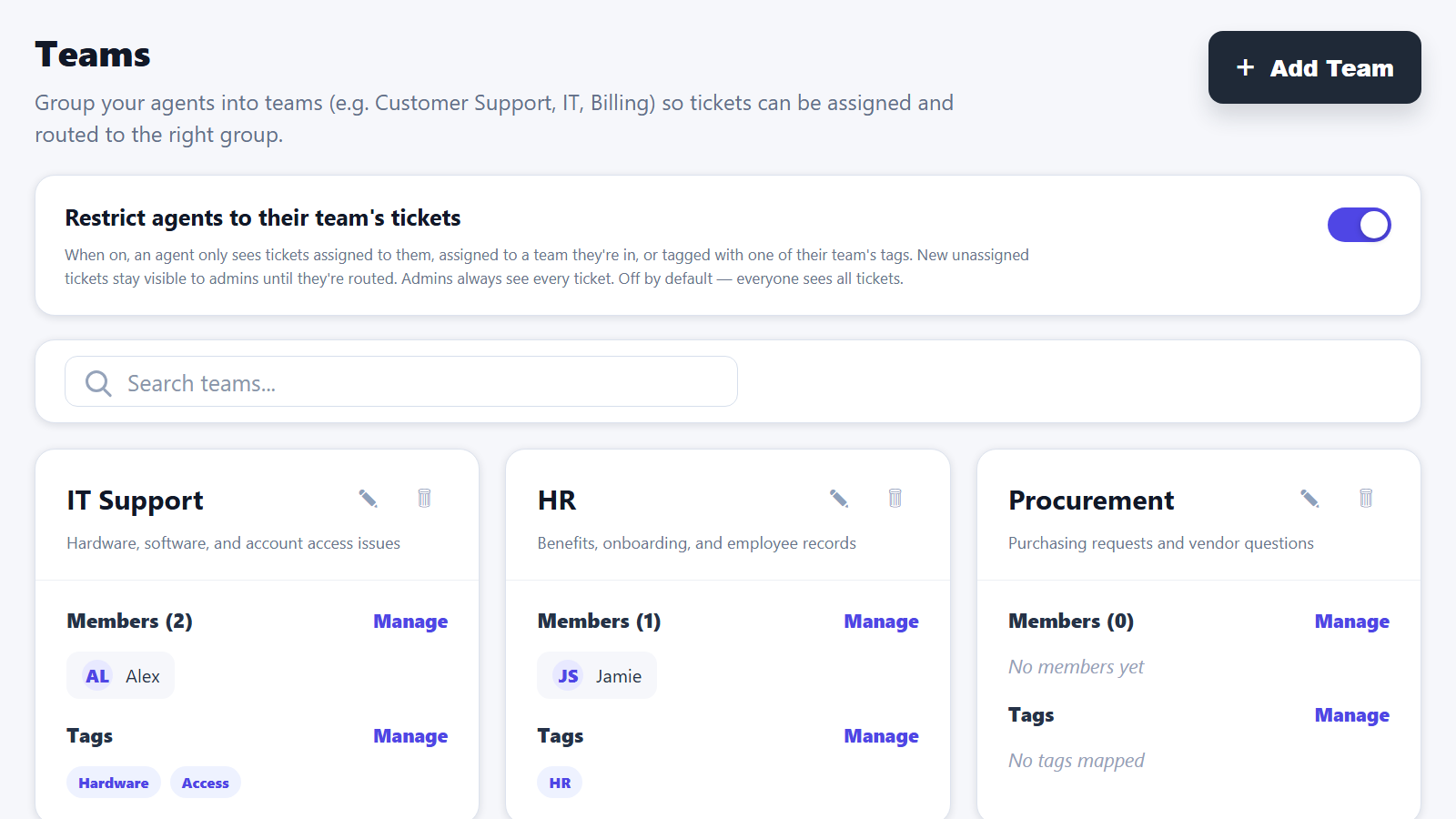
- 2Create one team per department if you have not already. Click Add Team, enter a Team Name, add a Description, select the right Team Members, then click Create Team.
- 3Give each team a clear Description, such as "Hardware, software, and account access issues." If you use AI Triage, this description helps AI route tickets to the right team.
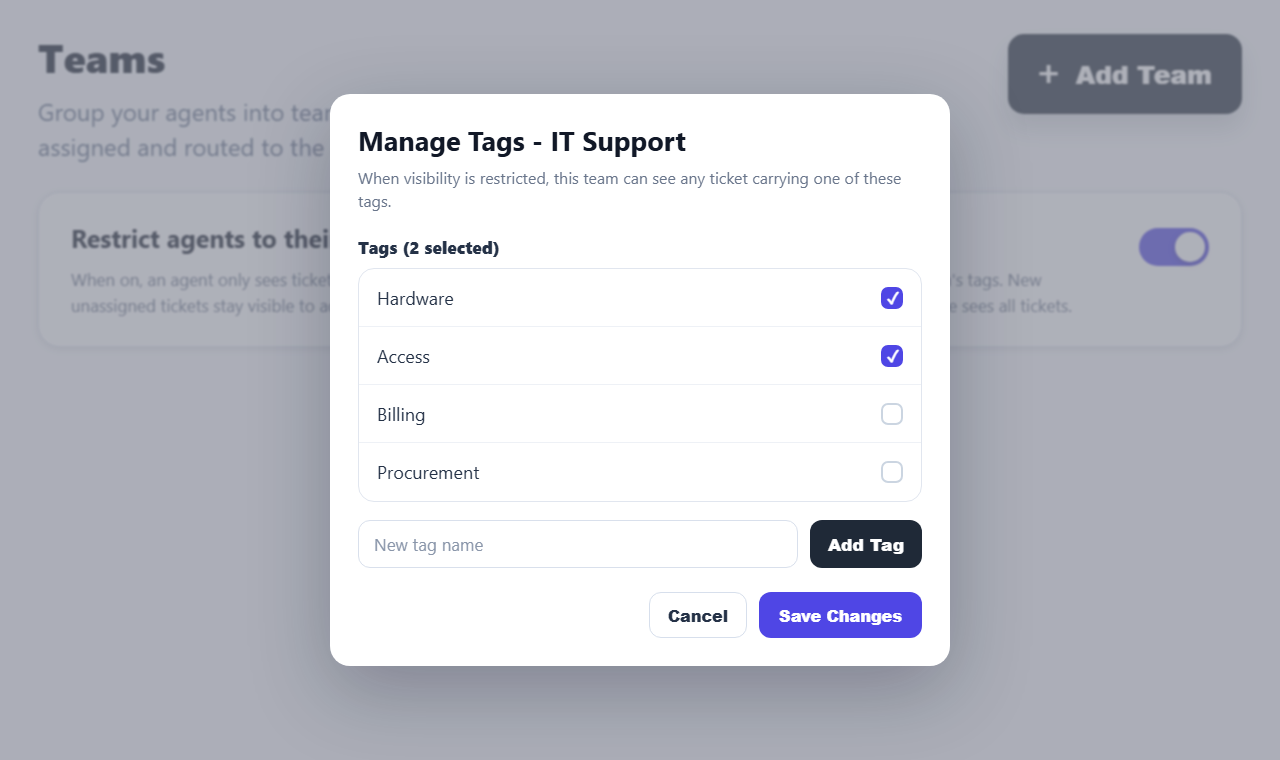
- 4Optional: map tags to a team. On the team card, find the Tags section and click Manage. In Manage Tags - [team name], select existing tags or type a New tag name and click Add Tag. Click Save Changes when done.
- 5At the top of the Teams page, turn on Restrict agents to their team's tickets.
That is it. Agents are now scoped to the tickets they are allowed to see.
Getting tickets to the right team
A ticket becomes a team's ticket when the ticket's Team field is set, or when the ticket carries a tag mapped to that team.
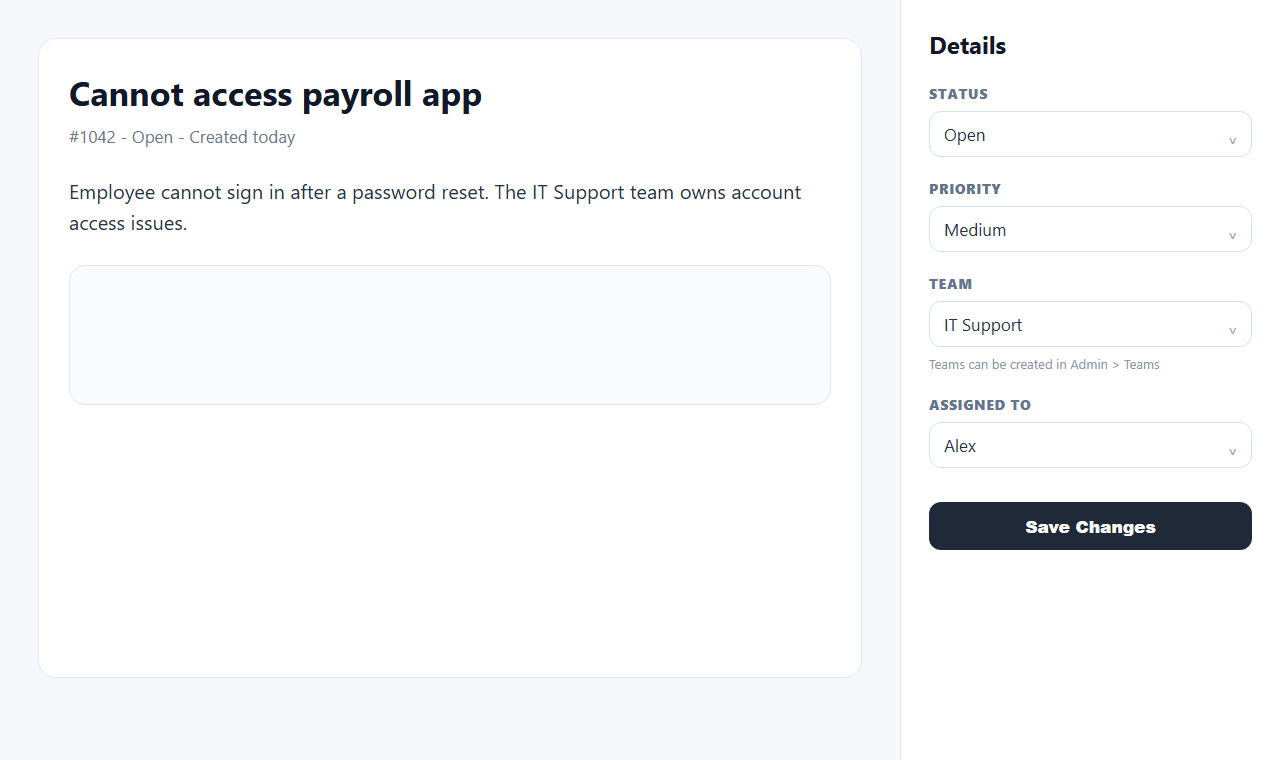
- Manual assignment: on a ticket, use the Team field in the Details sidebar, then click Save Changes. This is free.
- Mapped tags: if a ticket has a tag mapped to a team, agents on that team can see the ticket. Team tag mapping is free.
- AI Triage: AI can suggest or set the right team based on your team descriptions when AI Triage is enabled. AI Triage requires the Pro plan with AI enabled.
- Email Automation Rules: email rules can route incoming email tickets by conditions such as sender or subject. Email Automation Rules are a Pro feature.
How team tags are applied
When a ticket is assigned to a team, FyneDesk automatically applies that team's mapped tags to the ticket. If the ticket is reassigned or unassigned, the old team's auto-applied tags are removed and the new team's mapped tags are applied. Tags that an agent added manually are kept.
This means you can use tags as a flexible visibility rule without forcing every ticket tag to belong to a team.
What agents will see
After the setting is on, an agent's ticket lists, dashboards, and search results only show tickets in their scope. If an agent opens a direct link to a ticket outside their teams, they see This ticket isn't available to you instead of a generic error.
Sharing one ticket outside the team
If someone from another department needs to help on one ticket, @mention that teammate in a comment. A staff @mention gives that person viewer access to that specific ticket and sends their normal mention notification, without opening the rest of the queue.
Notifications
When team-based visibility is on, agents do not receive email or bell notifications for tickets they cannot see. They still receive notifications for tickets assigned to them, tickets assigned to their teams, tickets they are co-assigned to, visible team-tagged tickets, and tickets where they are @mentioned.
Turning it off
Go back to Admin → Team Members → Teams and switch off Restrict agents to their team's tickets. Everyone immediately goes back to seeing all tickets. No data is lost; your teams, memberships, and tag mappings stay in place.
FAQ and troubleshooting
An agent cannot see a ticket they should see.
Check that they are a member of the right team, the ticket's Team field is set to that team, or the ticket has a tag mapped to that team. Also check whether they are directly assigned or listed as a co-assignee.
An agent can still see everything.
They are probably an Admin. Admins always see every ticket by design.
New tickets are not showing up for agents.
Unassigned and untagged tickets are Admin-only while the setting is on. Assign the ticket to a team, add a mapped tag, or use a Pro routing option to route incoming tickets automatically.
Does this hide tickets from customers?
No. Team-based visibility only affects agents inside your help desk. Customers and portal users continue to see only their own tickets according to the existing portal rules.
Is this free?
Yes. Teams, the Restrict agents to their team's tickets setting, tag-to-team mapping, and automatic team tags are free. AI Triage requires Pro with AI enabled, and Email Automation Rules are Pro.