
Connect WhatsApp to FyneDesk
Bring a WhatsApp Business number into FyneDesk so every inbound message becomes a ticket and your team replies right from the ticket — no separate WhatsApp app needed. You can connect directly through Meta's Cloud API or through a provider such as Gupshup, 360Dialog, or Twilio.
What you'll need
- A WhatsApp Business number already set up with your provider (or directly with Meta).
- Admin access to your FyneDesk organization.
- Your provider's credentials — see Step 2 for exactly which values to copy.
Step 1 — Add the connection in FyneDesk
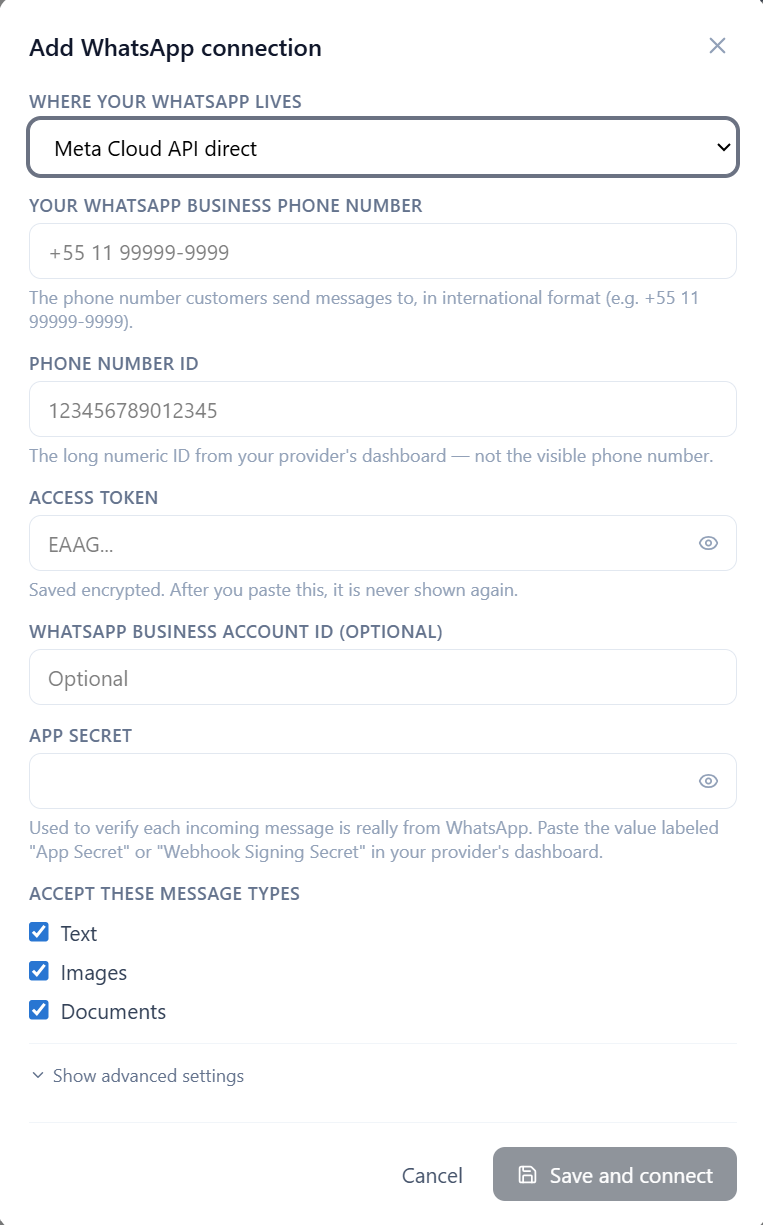
In FyneDesk, open Admin → Settings. Under Developer & Data, choose Connections, then add a WhatsApp connection. Under Where your WhatsApp lives, pick how your number is hosted: Meta Cloud API direct, Gupshup, 360Dialog, Twilio (Meta-passthrough mode), or Other / custom provider.
Then fill in the form:
- WhatsApp Business phone number — the number customers message, in international format (e.g. +55 11 99999-9999).
- Phone Number ID — the long numeric ID from your provider's dashboard, not the visible phone number.
- Access token — the token or API key from your provider (Step 2). Stored encrypted; once saved, it's never shown again.
- WhatsApp Business Account ID — optional.
- App Secret — the value your provider labels App Secret or Webhook Signing Secret. FyneDesk uses it to verify each incoming message is really from WhatsApp.
- Accepted message types — Text, Images, and Documents.
Click Save and connect.
Step 2 — Get your credentials from your provider
Find the section that matches the provider you picked in Step 1, copy the values, and paste them into the form.
Meta Cloud API direct
Open developers.facebook.com, go to your app, then WhatsApp → API Setup:
- Phone number ID and WhatsApp Business Account ID (WABA ID) are shown on that page.
- Click Generate token for the access token.
- App Secret is under App Settings → Basic → App Secret → Show.
whatsapp_business_messaging and whatsapp_business_management permissions.Gupshup
Open hub.gupshup.io, open your WhatsApp app, and go to Settings:
- Copy your API key and paste it into FyneDesk's Access token field.
- Copy your phone number, app name, and Phone Number ID.
- For App Secret, use the value Gupshup labels Webhook Signature Secret (under Settings → Webhook).
Gupshup passes Meta's webhook format through unchanged, so FyneDesk reads the same payload whether you're on Meta direct or Gupshup.
360Dialog
In the 360Dialog hub, open the channel for your number:
- Generate your API key (360Dialog calls it the
D360-API-KEY) and paste it into FyneDesk's Access token field. Each number has its own key, and only the newest key stays valid. - Copy your Phone Number ID and WABA ID from the hub.
- Picking 360Dialog in Step 1 tells FyneDesk to route through 360Dialog's endpoint (
waba-v2.360dialog.io) for you.
Twilio (Meta-passthrough mode)
FyneDesk needs WhatsApp's native Meta webhook format. Twilio's standard WhatsApp webhooks use Twilio's own format, which FyneDesk can't read — so your Twilio number must be set up in Meta-passthrough mode, where Twilio forwards Meta's raw webhooks unchanged.
- Enable Meta-passthrough for your WhatsApp sender in Twilio, then use your Meta Cloud API credentials (Phone number ID, access token, App Secret) for that number, exactly as in the Meta section above.
- See Twilio's WhatsApp Business Platform docs for enabling passthrough on your account.
If your Twilio number can't run in Meta-passthrough mode, connect it through Meta Cloud API direct or another supported provider instead.
Other / custom provider
Any provider that forwards Meta's Cloud API webhook format will work. Paste the credentials your provider gives you into the matching fields. If your provider uses a different API endpoint or authentication header, open Show advanced settings in the form to set the outbound base URL and auth header. Use whatever your provider labels App Secret or Webhook Signing Secret for the App Secret field.
Step 3 — Finish setup in your provider
After you save, FyneDesk shows a banner with a Webhook URL and a Verify Token. Copy both into your provider's webhook settings and subscribe to inbound messages.
Where the webhook setting lives, by provider:
- Meta Cloud API direct — WhatsApp → Configuration → Webhook: paste the Webhook URL as the Callback URL and the Verify Token, click Verify and save, then subscribe to the messages field.
- Gupshup — Settings → Webhook: paste the Webhook URL and Verify Token, and turn on the messages event (optionally message_event for delivery status).
- 360Dialog — set the webhook URL for your number in the 360Dialog hub. (Remember it clears if you regenerate the API key.)
- Twilio — point your WhatsApp sender's inbound webhook at the FyneDesk Webhook URL.
- Other / custom — paste the Webhook URL into your provider's callback/webhook field and enable inbound message events.
Step 4 — Test the connection
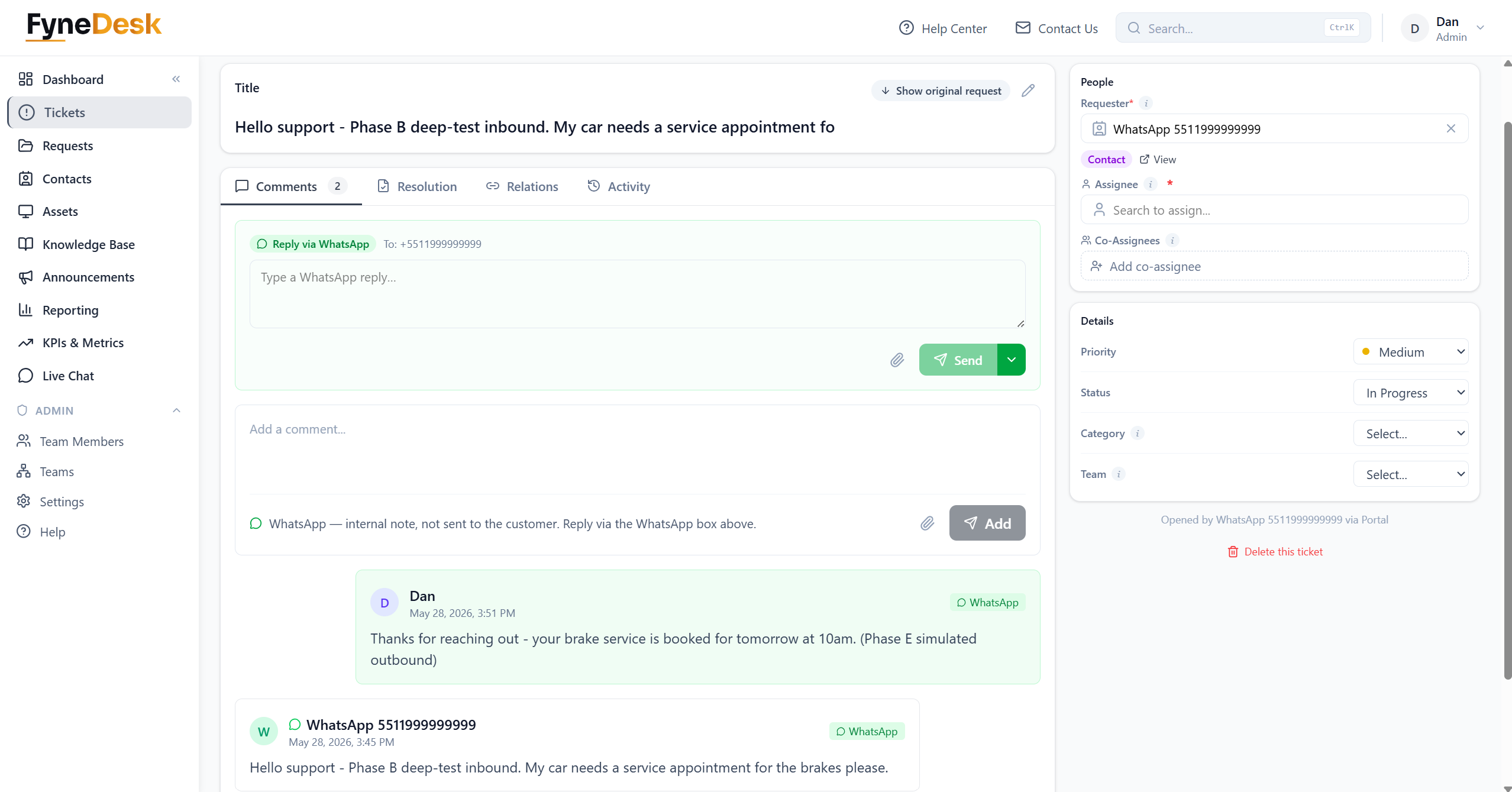
Back in FyneDesk, on the connection row, click Test connection. A green check means the credentials and webhook are working. Then send a real test message: from a personal WhatsApp, message your business number. It should appear in FyneDesk as a new ticket within about five seconds.
Troubleshooting
WhatsApp connection isn't working — common fixes
"Webhook verification failed." The Verify Token in your provider must match the one FyneDesk gave you exactly. Re-copy it and check for a stray space at the start or end.
"Signature invalid" in your FyneDesk audit log. The App Secret / Webhook Signing Secret was pasted incorrectly. Re-copy it from your provider and re-paste it into the connection.
"Token expired" (Meta direct). You used a temporary 24-hour token. Create a system user in Meta and generate a non-expiring token, then update it on the connection.
"Test connection" fails with a 401 (Meta direct). The token is missing permissions — it needs both whatsapp_business_messaging and whatsapp_business_management.
360Dialog stopped working after you made a new key. Regenerating the API key clears the webhook and invalidates the old key. Paste the newest key into FyneDesk and re-do Step 3.
Gupshup test fails. Gupshup keeps separate sandbox and production API keys — make sure you're using the production key.
Twilio messages don't arrive. Twilio's default webhook format isn't supported. Confirm the number is in Meta-passthrough mode so it forwards Meta's native webhooks.
Inbound messages show the wrong sender name. WhatsApp provides the contact's own profile name, so you see whatever the customer set on their account. This is expected.